You are here because you want to create a hotmail or live email address account in less than a minute. That's one of the easiest things to do. Did you noticed that I said hotmail or live email address ? That's because I didn't wanted to create another article which would be identical with this one. Microsoft allows you to create a free email address using hotmail.com or live.com domains. That's why I am going to include both of them.
Note: After you will create a new email address, you will be able to use it for other Microsoft services such as MSN Messenger. There are a lot of ways to use an email but this is not the purpose of this article. This article was written for those who are interested in creating their first hotmail/live email address. As I already said, the entire setup process should take you a couple of minutes.
Open the Hotmail/Live page and Sign Up for your free email address
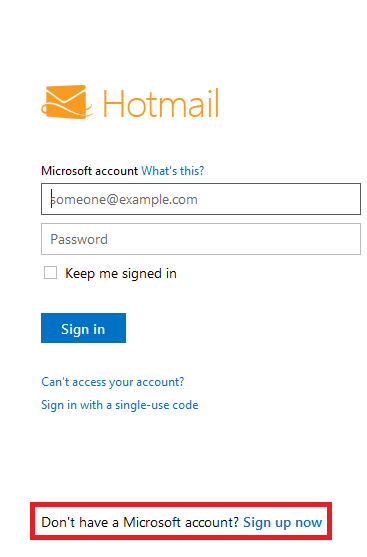
First thing to do. Open your favourite web browser and go to Hotmail or Live. I checked both of these addresses and they should look the same, no difference between them. Once you`re there, look down the page for a button named ``Sign Up``, it should be near a blue text ``Don`t have a Microsoft Account?`` Once you find that button, click on ``Sign Up Now``. Take a look at this picture as this speaks for itself.
Once you clicked on ``Sign Up now``, it should redirect you to a page which starts with ``Microsoft Account`` - `` and you will see a lot of fields that needs to be completed. Take a look at this picture, this is how it looks on my computer:
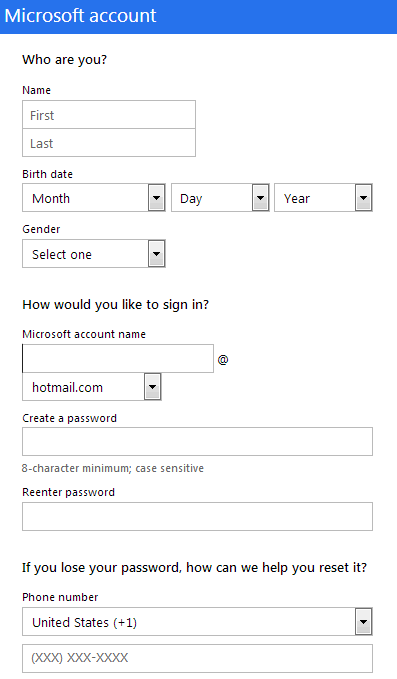
Complete all fields and make sure to save this information
Due to the length of the image, I decided to split the information in two images instead of one. Make sure that you read, understand and complete all the fields. The setup process has been made more intuitive. I have explained each section.
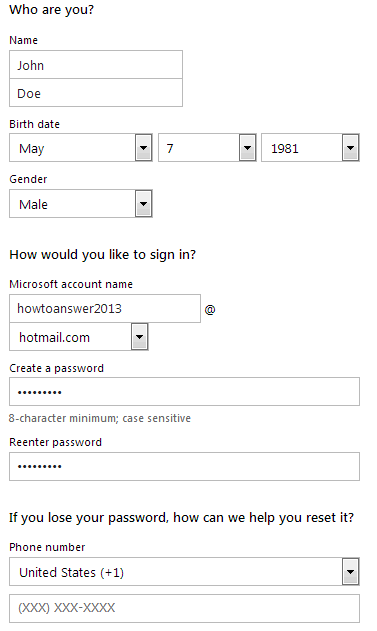
We're still at the "password recovery" section so besides a phone number you will also need to add an alternate email address (that's not mandatory but it would also help you) and to create a security question.
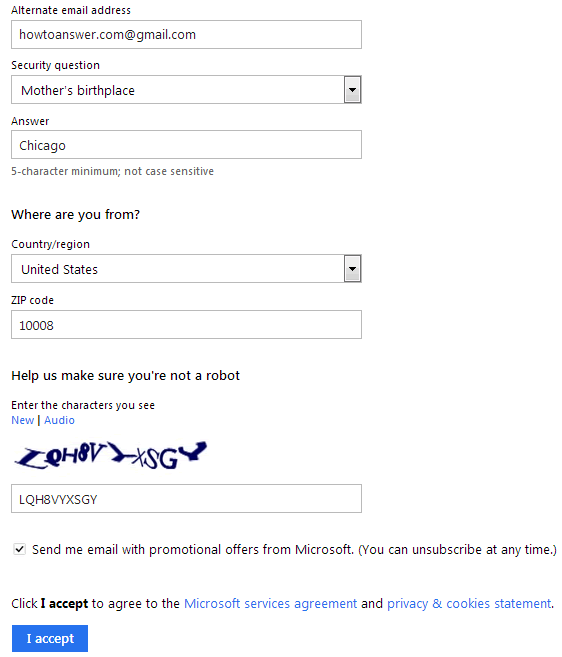
Note: If you don`t have another email address, don`t worry. You have another option for those like you and all you have to do is to click on ``Or choose a security question for password reset``. This will allow you to choose from a list of popular answers. Just make sure that you will remember this answer since you choosed this method you won`t be able to recover your password in the future (if you will forget it) if you don`t know the answer. In my opinion, it`s always better to use the ``Alternate Email Address`` option but if you don`t have another email address, don`t worry, just make sure that you won`t forget the answer so choose an answer that you can`t forget.
Where are you from?
We are almost ready, this is the final step. As you can see, now you need to type your first name (the name and address in this picture are fictious) and then your last name. You have to choose your country from that drop-down menu. If you typed and selected everyting, check on more time, take a good look at the re-captcha code and see if you can type it. If you can`t distinguish that code, don`t worry: under ``Enter the characters you see`` text you should see two options: New | Audio. If you can`t distinguish the current characters, click on "New" and new characters should appear, if you can`t see those either, click again on "New". You can also choose Audio and you should hear the characters spelled by a voice, just make sure that your volume is properly selected. After you managed to type those characters, the last thing to do is to click on ``I Accept`` button.
If everything went well, you should be redirected to a page that allows you to access your Inbox, to send an email, access the calendar, your contacts and the options. The first thing to do is to access your email. In order to that you need to click on ``Go to Inbox (1)`` (it`s right under Hotmail highlights). This image will show you how this page looks, keep in mind that it might look a little different as the ads keeps changing (although I did not included any ads in this image).
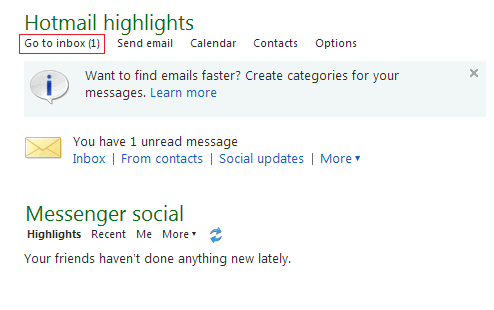
The first contact with your email
Here it is, the Hotmail/Live email interface. You`re actually in the Inbox folder of your email address and as you can see, you already received your first email from Hotmail Team, which is by the way, an informative email that tells you more about their free service. You may want to read this email as it is a fast how to guide.
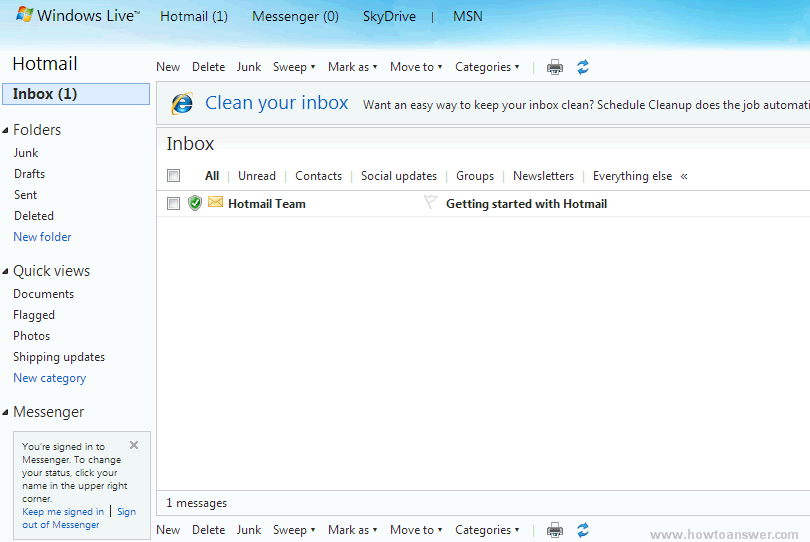
The purpose of this article has been achieved. Once you`re in the Inbox you`ve successfully created your first Hotmail/Live email address and from now on you need to learn how to use properly this email. On the left side, you may notice a column with Folders. Click on each folder, one by one and you may notice that the interface is changing each time, depending on your current location. You can even add a New folder. There are a lot of things to explore at your Hotmail/Live email address so go ahead and take a look, don`t modify things, just look at them and you will already get an ideea about this free email. You will also have to learn how to sign out or sign in hotmail/live email but that`s not the purpose of this article.
Important: Keep in mind that you can always setup a new Hotmail/Live email address, you can create a lot of free email accounts for you, family and friends but if you`re going to use this email as your first email ever, make sure that you can actually remember your secret password and other details that you entered here. All the information found here is offered as an example so make sure that you remember your details. That`s because this email will become an important part of your life and if you will loose access, you are going to loose contacts, photos, documents and a lot of other things. When people setup their first email, they don`t get very serious and after a couple of years when they loose access to their email, most of them don`t remember what secret question and if they added an alternate email address or phone number which makes the password recovery process almost impossible. The ideea is to make sure that you save this information so that you can actually use it when you need it. So, the setup process is piece of cake, learning how to use it it`s also an easy task but recovering your email back could be almost impossible and that`s why I insisted so much. I wanted to make sure that you understand everything. When compared with other free email providers, I could only say that Hotmail/Live email accounts are easier and also faster to create. Until several years ago, I can`t say that I was a fan of their free email service but Microsoft changed a lot of things and I admit that everything has been improved. If you`re interested in other articles regarding Hotmail/Live services, navigate to Hotmail/Live category or perform a search.
